
Connect a client on your Mac
Create a named connection in Account settings and copy its configuration into a compatible local MCP client.
- Account → Agent connections
- Doodi open and signed in on the same Mac
Bring a compatible AI client into your creative workspace. Give it access to the project context and design tools it needs, with permissions you can inspect and revoke.
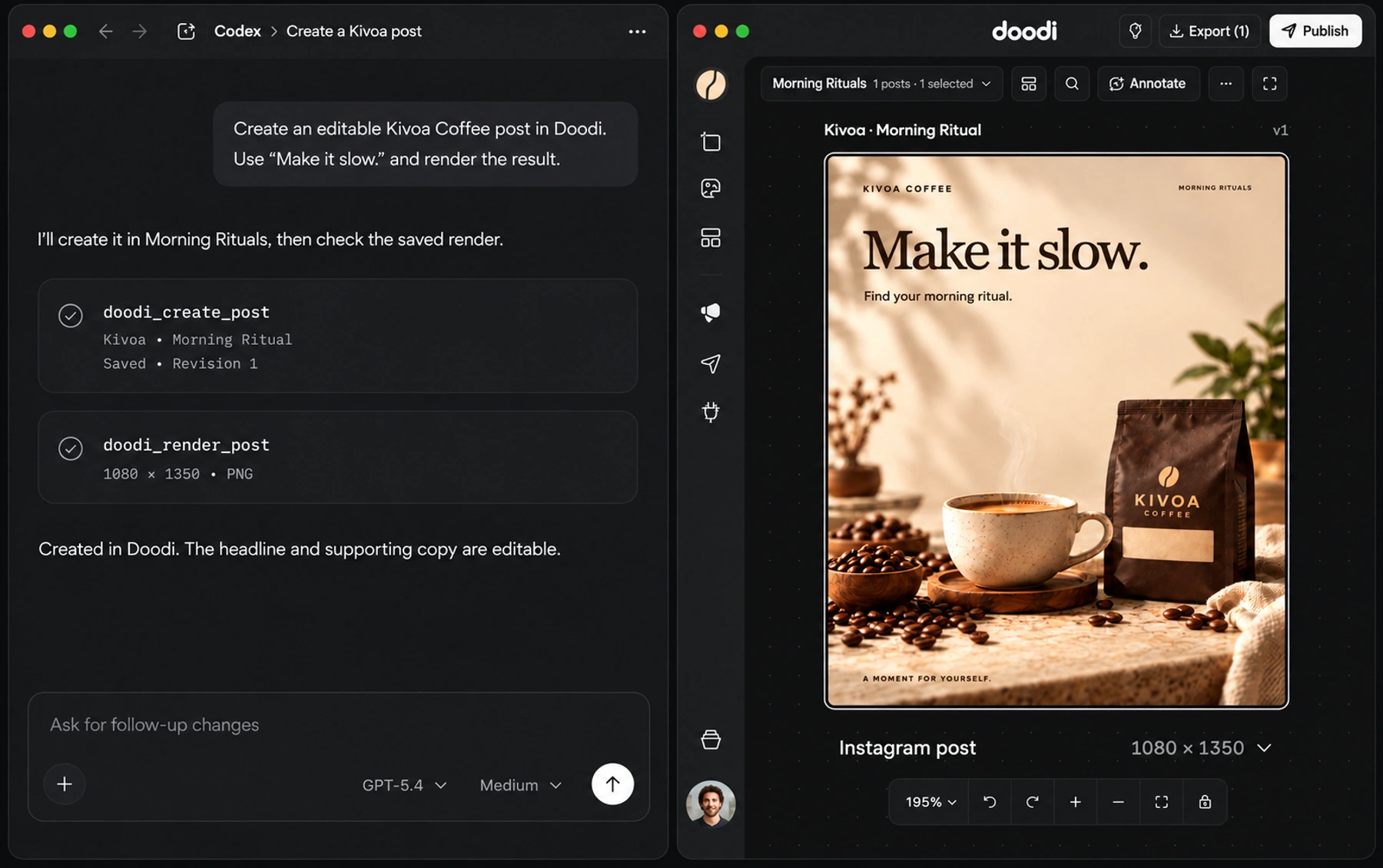
Recreated Codex conversation beside Doodi, based on a verified MCP run that created and rendered the editable Kivoa Coffee post.
Create a named connection in Account settings and copy its configuration into a compatible local MCP client.
Read access is required and write access is selected by default. Publishing and deletion have separate permission choices.
An authorized agent can read project facts, use templates, create or edit designs and render the saved result for inspection.
Review recent tool activity and remove access when it is no longer needed. Each connection belongs to the account that created it.
The steps to try it in your own workspace.
Open Account → Agent connections, name it and choose permissions and expiry.
Copy the server configuration into a compatible MCP client on the same Mac.
Give the agent a scoped task, inspect its saved renders and review activity in Doodi.
Answers about ai agent connections before you start.
The current endpoint is local to your Mac. Use a compatible client that can access it while Doodi is open and signed in.
Current connections cover the projects in their owning account on that device. Project-level grants are not implemented.
Publishing and deletion require their own opt-in permissions. Grant only the access you intend to provide.
No. Have the agent render the saved revision so you can inspect the result. A successful publishing submission also needs its provider status checked.
Bring the brief, your brand and a good idea.
Make the next post in Doodi.