
Edit the words
Change the content and its typography in the layer properties. Choose a font that fits the language and the design.
- Text, font, size and alignment
- Text color and supported appearance settings
A headline needs one more line. A photo needs a different crop. Select the supported layer and make the change right beside the artwork.
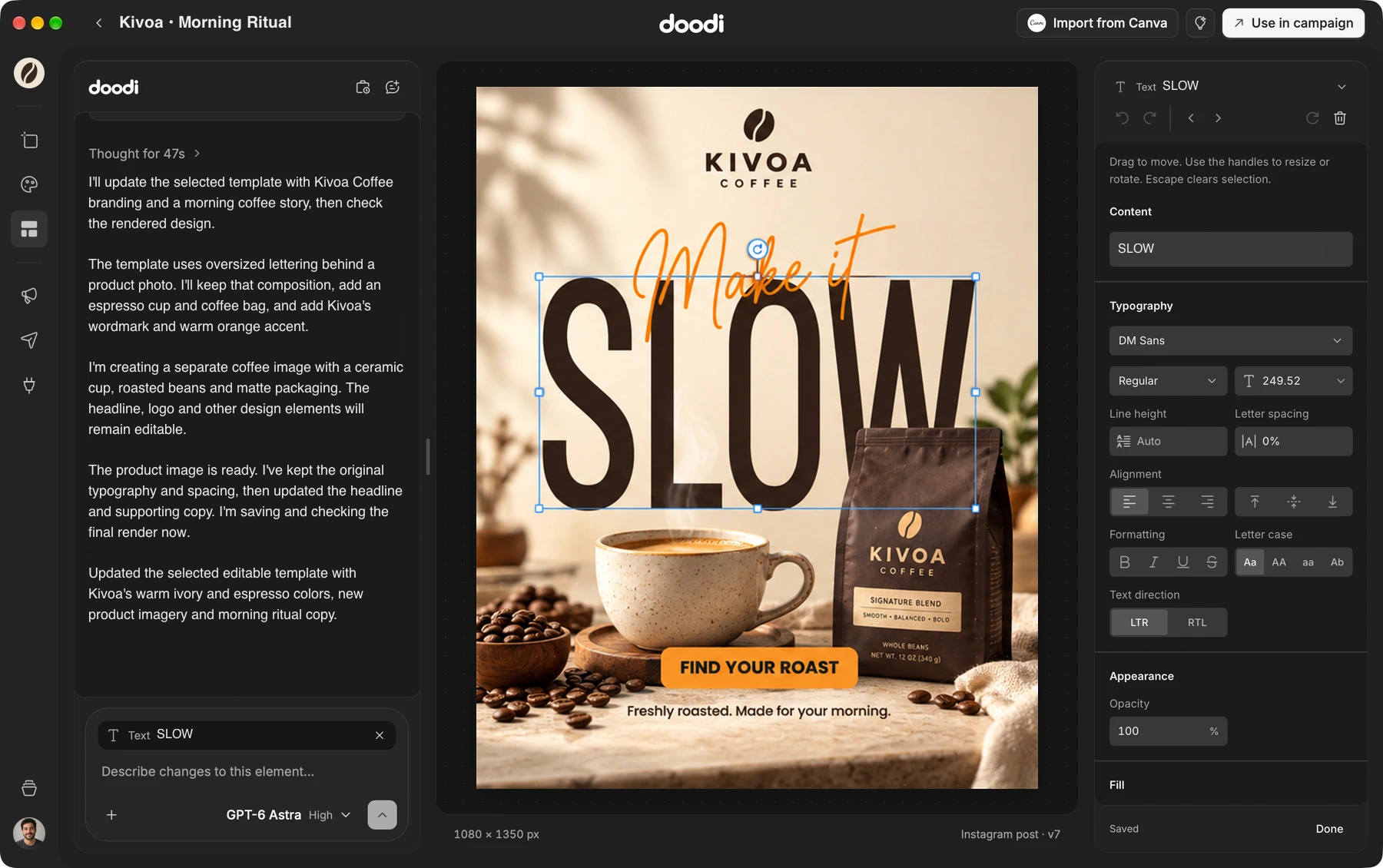
Doodi demonstration with fictional Kivoa Coffee content.
Change the content and its typography in the layer properties. Choose a font that fits the language and the design.
Move independently editable layers on the artboard. Use the handles to adjust their size and angle while seeing the composition.
Choose a replacement from your library or stock search. Refine its fit and appearance within the design.
The preview responds while you edit, and supported changes save automatically. Undo or reset the session when you want to try again.
The steps to try it in your own workspace.
Click a supported layer on a canvas or in Template Studio.
Change the controls available for that layer, or drag its transform handles.
Review the result and finish the editing session. Use Version history to revisit earlier saved work.
Answers about layer editing before you start.
No. Repeated, embedded or flattened elements can have editing limits. Doodi shows the supported controls; you can still annotate the area and ask for a change.
The editor can load fonts from Google Fonts directly, including Arabic choices. Imported subset fonts may need replacing when they lack newly typed characters.
Yes. Supported movement, resizing and rotation save with the layer and carry into copies and exports.
Yes, for supported layers. Removing a layer also removes its nested elements. Undo and saved version history help you recover an earlier state.
Bring the brief, your brand and a good idea.
Make the next post in Doodi.