
Choose how to import
Upload a PDF or PowerPoint export. Connected Canva links use the same import flow where account access and the integration are available.
- PDF and PowerPoint file uploads
- Connected design links where available
Bring over a design you have permission to use. Preview the exported pages, check the import notes and continue with the supported editable layers in Doodi.
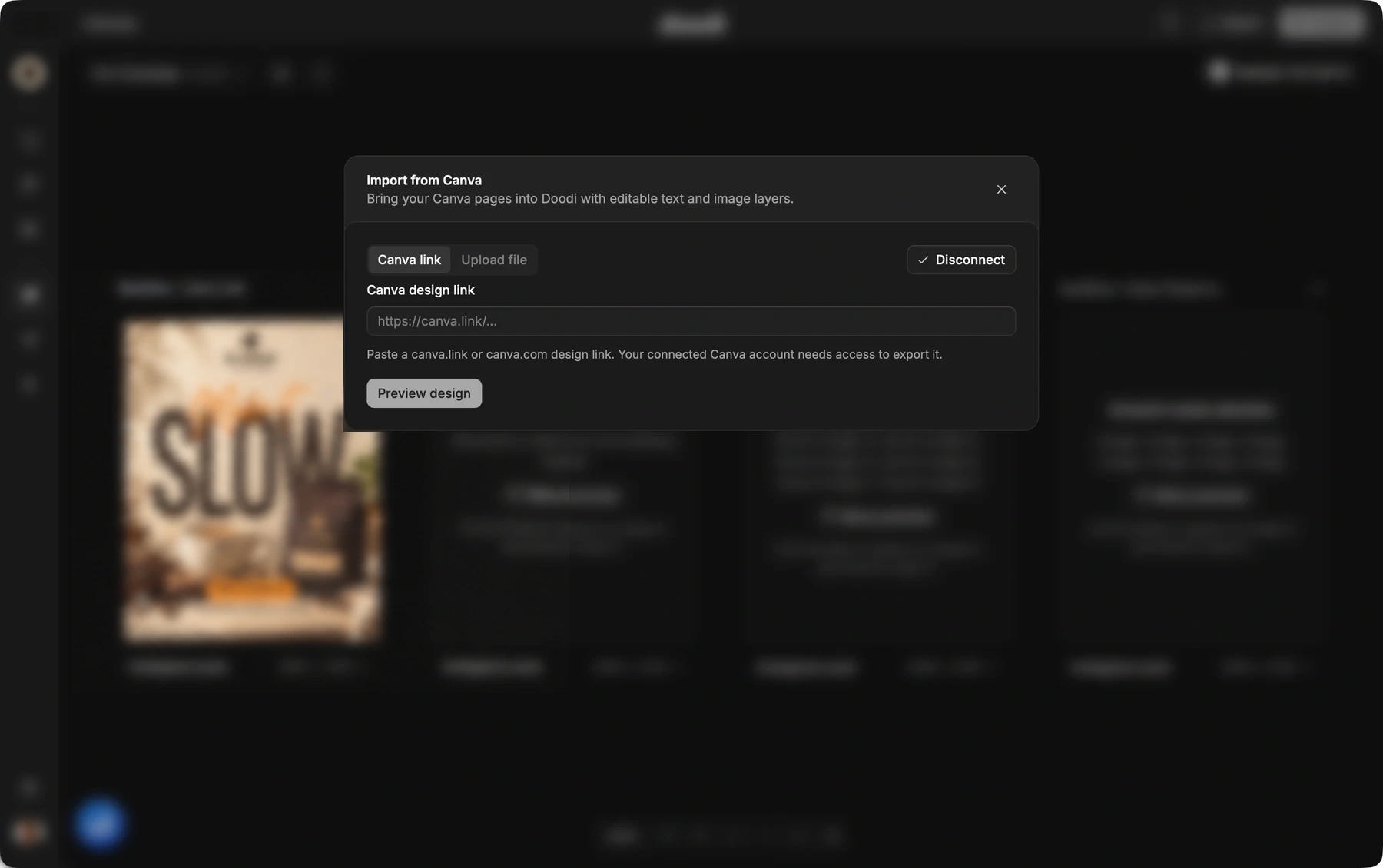
Doodi demonstration with fictional Kivoa Coffee content.
Upload a PDF or PowerPoint export. Connected Canva links use the same import flow where account access and the integration are available.
See the design before committing it. Choose the pages you want and read the notes about fonts, layers and unsupported effects.
Supported text, images and paths become elements in a Doodi design. Some effects remain images and flattened text cannot be recovered.
Import into a campaign or the template library. The Doodi copy can be edited and reused independently.
The steps to try it in your own workspace.
For PDF, use Canva’s PDF Print export with Flatten PDF and crop marks off.
Choose Upload file, or a connected design link where available. Preview and select the pages.
Inspect fonts, text and image placement, then edit or reuse the imported design.
Answers about canva import before you start.
No. Flattened or outlined text cannot be recovered as ordinary text. Some effects stay as image layers, and unsupported drawing operations can prevent an import. Review the preview and notes.
Connected-link availability depends on the integration’s availability and your Canva account’s export access. PDF and PowerPoint uploads provide the file-based import route.
No. It creates a separate Doodi design. Later changes do not sync between the two apps.
No. Canva account requirements and content licenses still apply. Importing does not grant new rights to an asset.
Bring the brief, your brand and a good idea.
Make the next post in Doodi.